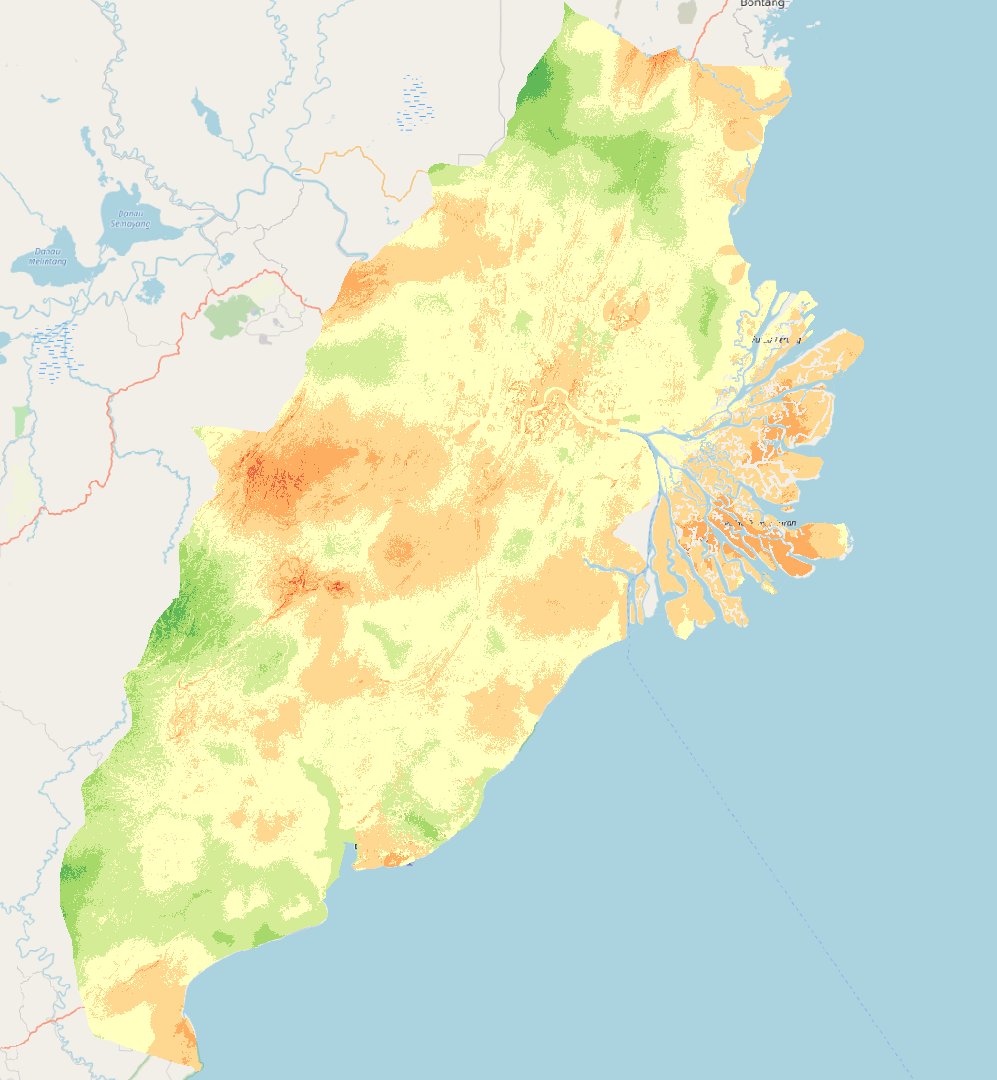
1. Steps involved
First, open toolbox and type in ‘Raster Calculator’ and open it
In the Expression box, key in (factor layer) * (assigned weights) for all the individual factors (slope, river, road, forest fire, forest area, urban settlement, airport, seaport)
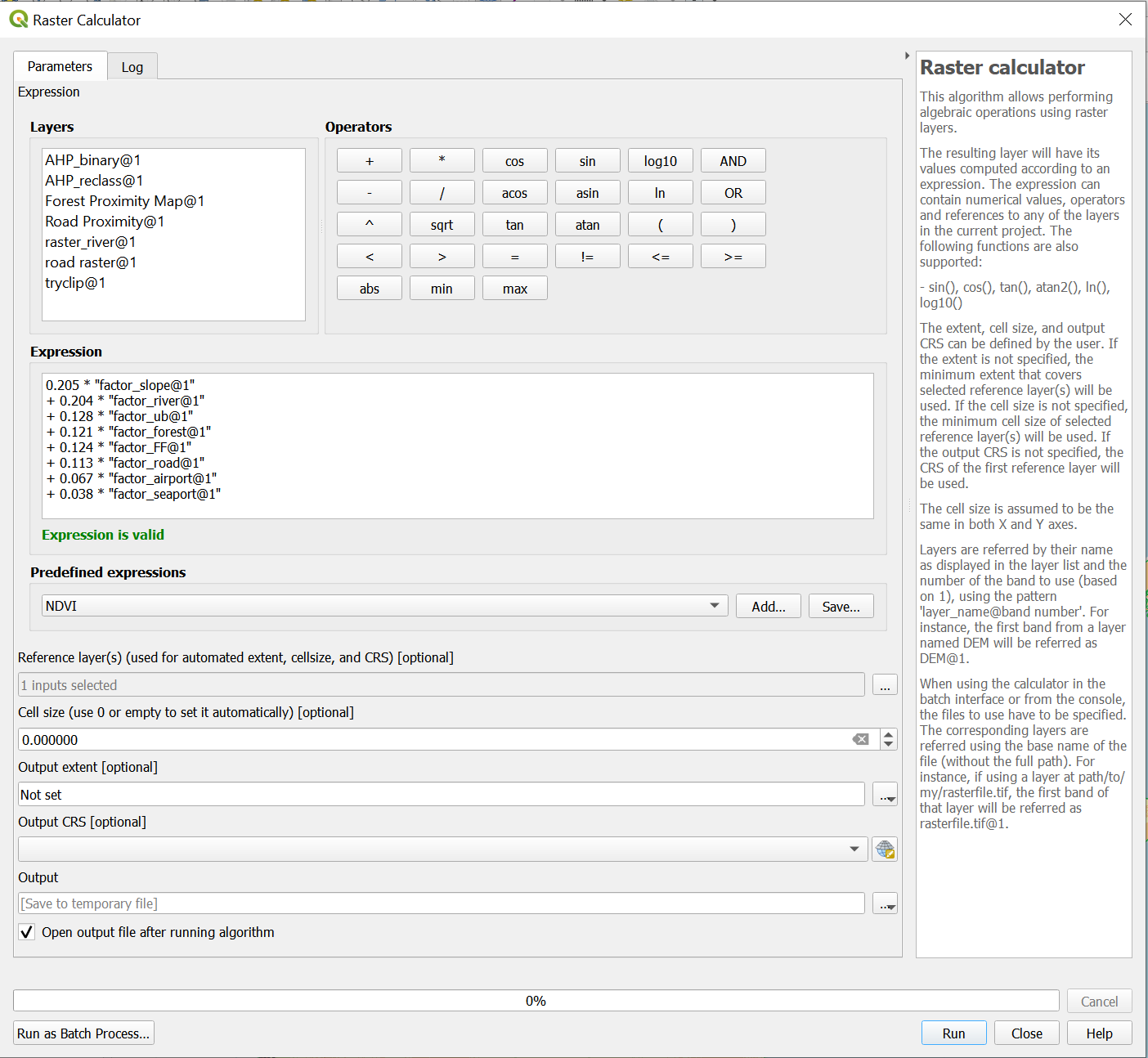
- Please use the values here:
- 0.205 * “factor_slope@1”
- + 0.204 * “factor_river@1”
- + 0.128 * “factor_ub@1”
- + 0.121 * “factor_forest@1”
- + 0.124 * “factor_FF@1”
- + 0.113 * “factor_road@1”
- + 0.067 * “factor_airport@1”
- + 0.038 * “factor_seaport@1”
For the Reference layer, tick the box for the DEM layer and click OK.
Click on Run. There would be a new temporary layer called ‘Output’. Save it as a geopackage and name it ‘AHP’
Open the toolbox again and type in ‘Reclassify by table’. Click into it
In the reclassification table, click on the three dots and it would bring you into a new page.
- Click on ‘Add row’ ten times.
- For the first row, put in 0.1 as the max and 1 as the value.
- For the next row, put in min as 0.1, max as 0.2 and value as 1. Do this for the rest of the rows
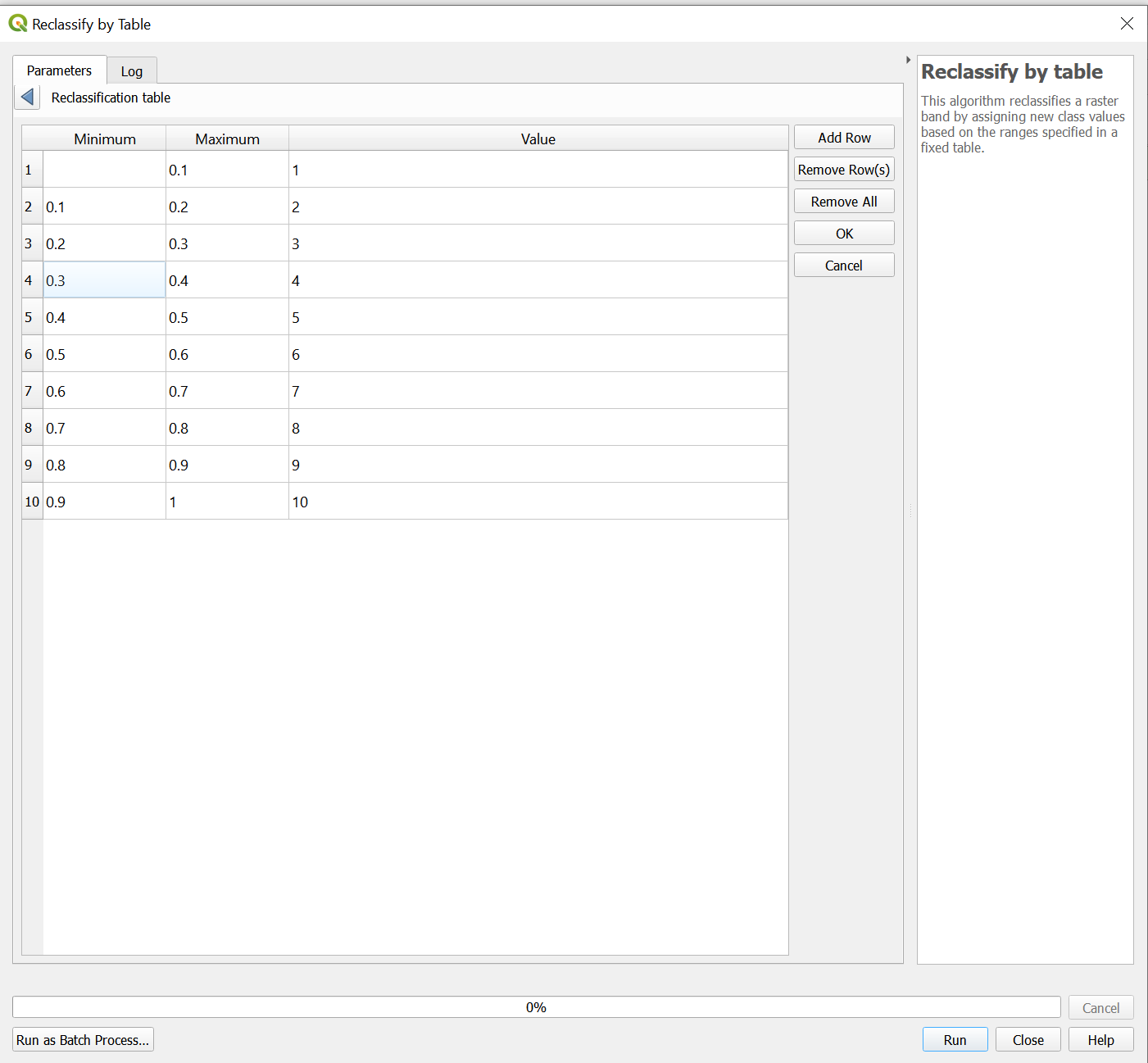
Once you are done. Click on OK to be returned into the previous page. Click on Run
Notice that a new temporary layer would be created called Reclassification table.
Save the temporary layer as a geopackage and name it AHP_reclass
Now, go into properties of AHP_reclass and into Symbology.
Change the render type to Palette/Unique Colours. Click on Classify and change the colour ramp to RedtoGreen
Your window should look like this
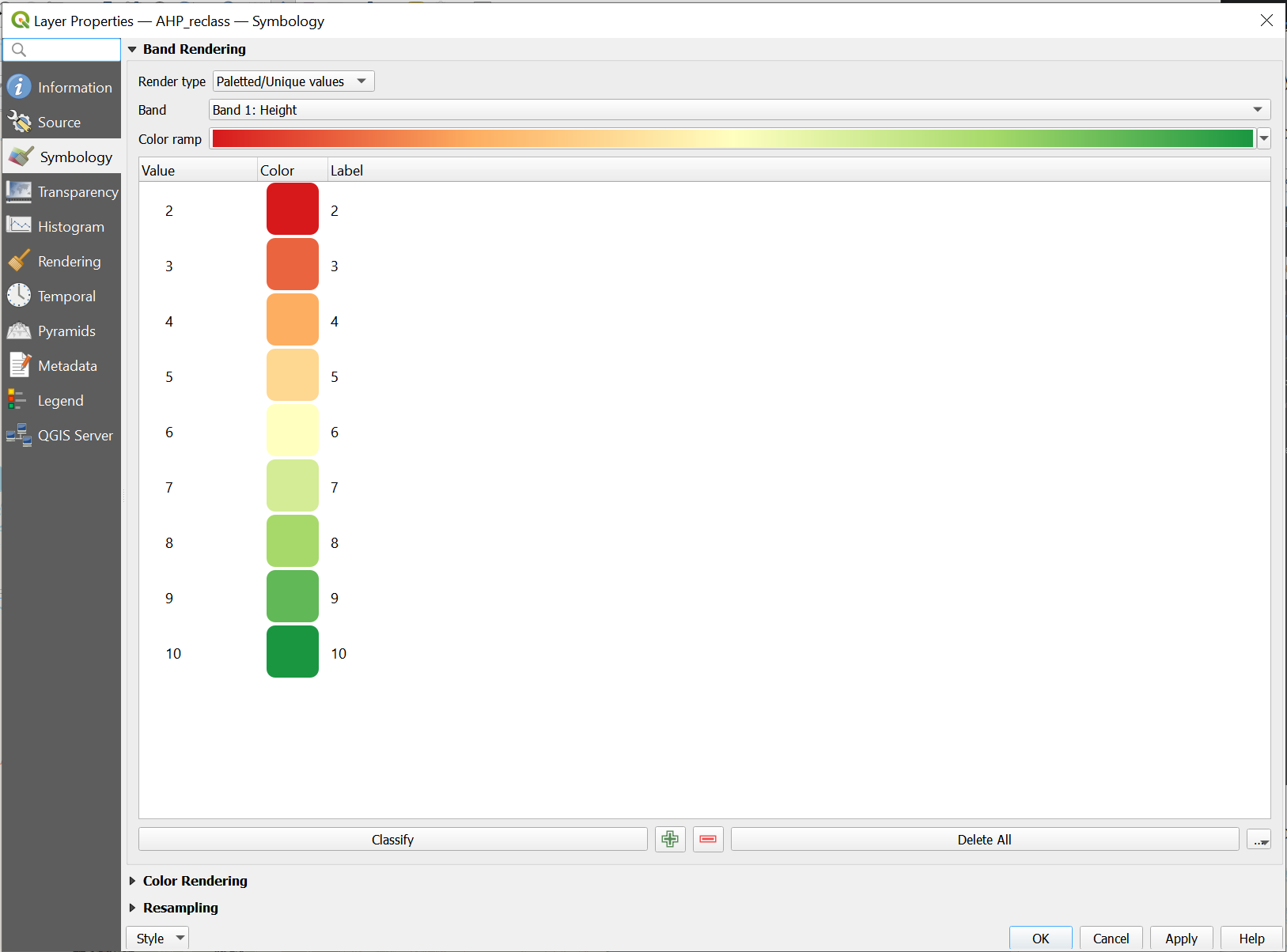
Click on Apply and OK. Your new layer would look like this